
Using Cloud Faxing with Microsoft 365 and Google Workspace
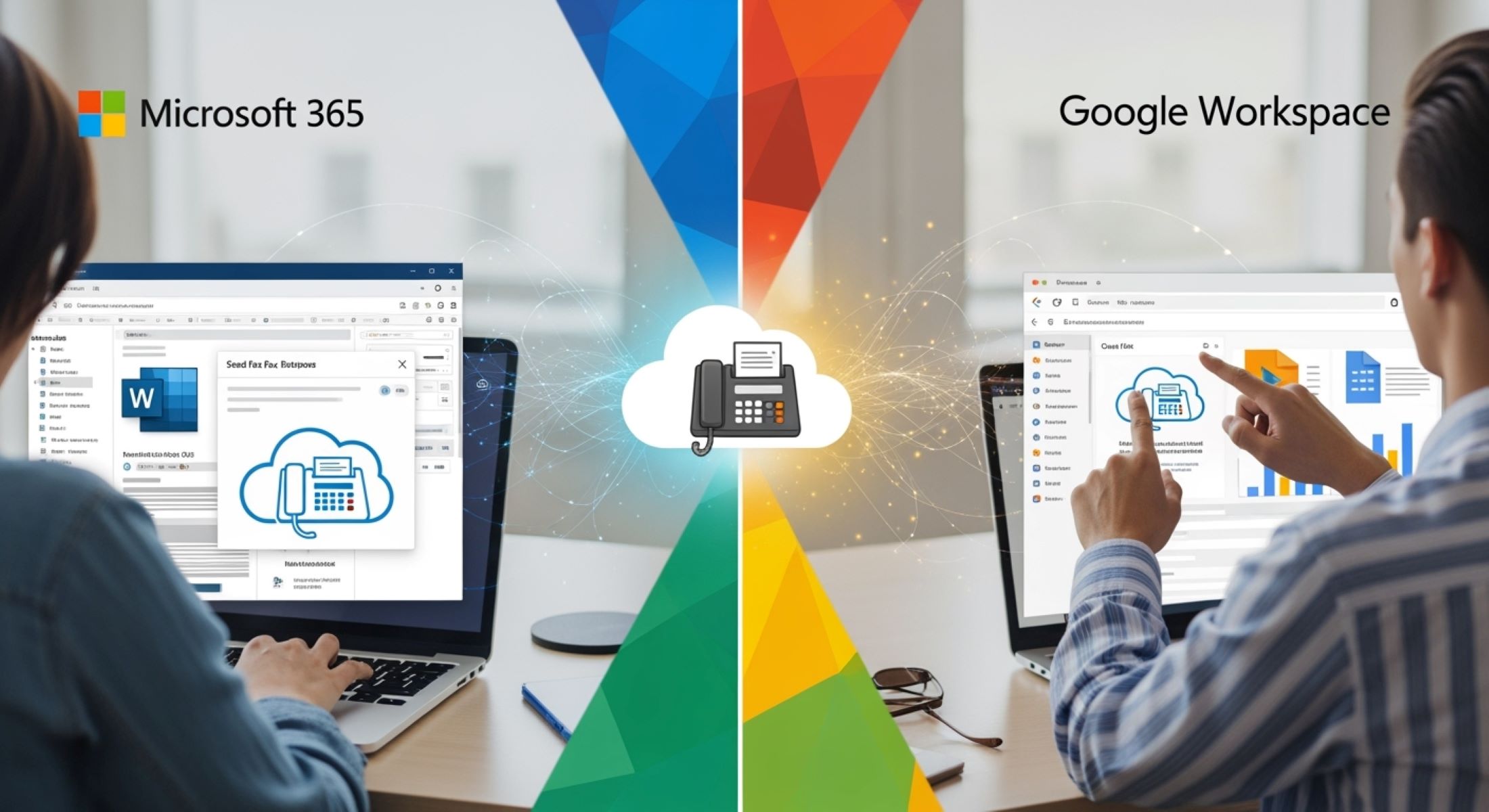
Have you ever thought about faxing in this digital age? It sounds almost old-school, right? But here’s the kicker—faxing is still very much alive in many industries like healthcare, legal, and finance. Enter cloud faxing—the modern, hassle-free, and efficient way to send and receive faxes without those clunky fax machines. In this article, I’ll walk you through everything you need to know about using cloud faxing with Microsoft 365 and Google Workspace. Whether you’re a small business owner or an IT pro, you’ll find practical insights to help you integrate faxing into your existing workflows effortlessly.
What Is Cloud Faxing?
Cloud faxing is a modern way of sending and receiving faxes that completely replaces the old-fashioned fax machines and telephone lines with internet technology. Instead of relying on physical hardware that requires dedicated phone lines, cloud faxing uses online services to transmit your documents securely and quickly. This means you no longer need to be tied to a bulky fax machine or worry about maintaining phone line connections. The process is as straightforward as sending an email—just attach your document, type in a fax number, and hit send. On the receiving end, incoming faxes arrive as digital files in your email inbox or cloud storage, making it incredibly convenient and accessible from anywhere in the world.
One of the biggest advantages of cloud faxing is its flexibility. Traditional fax machines are limited to a specific location, and if you need to send or receive a fax, you have to be physically present or rely on someone else to operate the machine. Cloud faxing removes these geographical boundaries by allowing users to fax documents directly from their laptops, smartphones, or tablets. Whether you’re at the office, at home, or on the go, as long as you have an internet connection, you can manage your fax communications. This is a game-changer for businesses that have remote workers or multiple offices spread across different locations.
Security is another important aspect that cloud faxing improves significantly. Faxing often involves sensitive information, such as legal documents, medical records, or financial statements. Traditional fax machines send this information over phone lines, which can be intercepted or misplaced. In contrast, cloud faxing providers use encrypted internet connections to protect your data, and they often comply with strict regulatory standards such as HIPAA or GDPR. Plus, digital faxes can be stored securely in the cloud with access controls, reducing the risk of lost or mishandled documents. This makes cloud faxing a more reliable and safer option for industries where confidentiality is critical.
Finally, cloud faxing helps businesses cut costs and streamline workflows. Without the need for physical fax machines, paper, toner, and dedicated phone lines, companies save money on both equipment and maintenance. Additionally, cloud faxing integrates seamlessly with common productivity tools like email platforms and document management systems, which means faxing becomes part of your everyday digital workflow rather than a separate task. Automation options also allow for faxing to be scheduled, logged, and archived automatically, boosting efficiency. In short, cloud faxing modernizes an old communication method, making it more adaptable, secure, and cost-effective for today’s digital world.
Why Use Cloud Faxing Over Traditional Fax Machines?
| Benefit | Description | Traditional Fax Machines | Cloud Faxing | Impact on Business |
| No Hardware Needed | Cloud faxing eliminates the need for physical fax machines, freeing up office space and reducing clutter. | Requires bulky fax machines that occupy desk or floor space. | Operates entirely online with no hardware required. | Saves office space and reduces maintenance costs. |
| Anywhere Access | Faxes can be sent and received from any device with internet access, including laptops, tablets, and smartphones. | Fax machines require you to be physically present to send or receive faxes. | Access from anywhere, enabling remote work and mobility. | Enhances flexibility and supports remote teams. |
| Cost Savings | Cloud faxing cuts costs associated with phone lines, paper, ink, and maintenance of physical machines. | Ongoing expenses for phone lines, paper, toner, and repairs. | Monthly subscription or pay-per-use model, often cheaper overall. | Reduces operational expenses and overhead. |
| Better Security | Uses encrypted transmissions and secure cloud storage to protect sensitive documents during transfer and storage. | Transmits data over unsecured phone lines; physical documents can be lost or misfiled. | Encryption and compliance with standards like HIPAA and GDPR. | Improves confidentiality and compliance efforts. |
| Eco-Friendly | Reduces paper consumption by digitizing the faxing process, cutting down on waste. | Heavy use of paper and ink leads to environmental waste. | Minimal or no paper use; digital storage minimizes waste. | Supports sustainability goals and green initiatives. |
Integrating Cloud Faxing with Microsoft 365
Microsoft 365 is a powerful suite of productivity tools used by millions of businesses worldwide. Integrating cloud faxing into this environment can transform how your organization handles fax communications. Here’s a detailed, step-by-step list explaining how to integrate cloud faxing with Microsoft 365 and the advantages this integration offers:
- Select a Compatible Cloud Fax Service: Research and choose a cloud fax provider that offers direct integration or add-ins for Microsoft 365. Popular options often provide Outlook add-ins or API connectors designed for seamless use within Microsoft’s ecosystem.
- Connect Fax Service to Microsoft 365 Account: Use secure authentication methods like OAuth to link your Microsoft 365 account with your chosen fax service. This connection allows fax documents to flow between your fax provider and Microsoft apps such as Outlook, OneDrive, and SharePoint.
- Set Up Fax Delivery Preferences: Configure where incoming faxes will be delivered—commonly directly to your Outlook inbox as email attachments or saved automatically in OneDrive or SharePoint folders for centralized document management.
- Enable Fax Sending via Outlook: Utilize the fax service’s integration to send faxes directly from Outlook by composing an email addressed to the recipient’s fax number (often in a special email-to-fax format). This eliminates the need for standalone fax software or hardware.
- Automate Fax Document Archiving: Use Microsoft 365’s cloud storage services (OneDrive and SharePoint) to automatically archive sent and received fax documents. This ensures all records are saved securely and can be easily retrieved or shared.
- Leverage Microsoft Teams for Collaboration: Share faxed documents with your team instantly through Microsoft Teams. Team members can co-author, comment, and collaborate on documents that were received or sent as faxes, speeding up review and approval processes.
- Implement Workflow Automation with Power Automate: Design automated workflows to handle fax-related tasks, such as routing faxes to specific departments based on content, notifying team members when new faxes arrive, or integrating fax data with other business systems like CRM or ERP platforms.
- Set User Permissions and Security Controls: Use Microsoft 365’s security and compliance features to control who can access fax documents stored in OneDrive or SharePoint. Implement multi-factor authentication, data loss prevention (DLP) policies, and encryption to keep fax communications secure.
- Train Your Team on New Processes: Provide training sessions and documentation to help staff understand how to send, receive, and manage faxes within Microsoft 365. Emphasize the ease of use and time-saving benefits to encourage adoption.
- Monitor Usage and Performance: Use Microsoft 365’s analytics and the fax provider’s reporting tools to track fax volume, delivery success rates, and user activity. Monitoring helps optimize workflows and ensures the system meets business needs.
Microsoft 365 Overview
Microsoft 365 is a comprehensive suite of cloud-based productivity tools designed to help businesses and individuals work smarter and more efficiently. At its core, it includes widely used applications such as Outlook for email and calendar management, OneDrive for secure cloud storage, Teams for real-time communication and collaboration, and the classic office apps like Word, Excel, and PowerPoint for document creation and editing. This integrated environment allows users to seamlessly move between tasks without juggling multiple platforms or losing valuable time.
Adding cloud faxing into the Microsoft 365 ecosystem significantly enhances its utility by allowing users to send and receive fax documents directly within familiar apps like Outlook and OneDrive. Instead of dealing with standalone fax machines or separate fax software, all fax communications become part of the existing email workflow. Incoming faxes appear as attachments in your inbox, and outgoing faxes can be sent simply by addressing an email to a fax number, streamlining what was once a cumbersome process.
One of the key benefits of incorporating cloud faxing with Microsoft 365 is centralized communication. Managing emails and faxes in one place simplifies workflows, reduces the chance of missing important documents, and accelerates response times. Faxed documents can be saved directly to OneDrive or SharePoint, making document management easier by automatically organizing files in the cloud and enabling quick access from anywhere. Furthermore, these documents can be shared instantly within Teams, allowing colleagues to collaborate on faxed content, whether that means reviewing contracts, making edits, or discussing next steps—all in real time.
Setting up cloud faxing within Microsoft 365 is straightforward. First, you choose a reliable cloud fax provider that supports Microsoft integrations. Next, you connect your Microsoft 365 account through secure methods such as OAuth or API connections to establish a seamless link between your fax service and Microsoft apps. You then configure how incoming faxes are routed—whether directly to your Outlook inbox or saved into SharePoint folders for team access. After testing the sending and receiving functions to ensure everything works smoothly, it’s important to train your team so they understand how to use faxing features within Microsoft 365 efficiently. This integration turns faxing from a separate, sometimes frustrating task into an effortless part of daily communication.
Integrating Cloud Faxing with Google Workspace
| Aspect | Description | Traditional Faxing Challenges | Cloud Faxing Benefits in Google Workspace | Business Impact |
| Compatibility | Cloud fax services offer native or API integrations that work seamlessly with Gmail, Google Drive, and Google Docs. | Requires separate hardware and software, causing workflow interruptions. | Faxing directly from Gmail and storing faxes in Google Drive or Docs without switching apps. | Improves productivity by keeping communication within one platform. |
| Accessibility | Users can send and receive faxes from any internet-connected device using Gmail or Google Drive. | Physical fax machines limit mobility and access to fax documents. | Access fax documents anytime, anywhere on desktops or mobile devices. | Enables remote work and faster document handling. |
| Document Management | Faxed documents are automatically saved and organized in Google Drive, integrated with Drive’s search and sharing features. | Paper faxes require manual scanning and filing, prone to loss or damage. | Digital archiving simplifies retrieval, sharing, and collaboration on faxed files. | Reduces paper clutter and streamlines document workflows. |
| Collaboration | Faxed documents can be opened in Google Docs for editing or commenting and shared via Google Chat or Meet. | Collaboration is difficult with paper faxes and requires physical copies. | Teams can collaborate in real time on faxed documents within Google Workspace apps. | Accelerates decision-making and improves teamwork. |
| Security and Compliance | Uses Google’s robust security infrastructure, plus fax service encryption to protect sensitive data. | Traditional fax lines offer minimal security; documents can be intercepted or misplaced. | Supports compliance with HIPAA, GDPR, and other regulations through encrypted, secure transmissions and storage. | Enhances data protection and regulatory compliance. |
Google Workspace Essentials
- Understand that Google Workspace is a comprehensive productivity suite that includes essential tools such as Gmail for email and communication, Google Drive for cloud storage, Google Docs, Sheets, and Slides for document creation and collaboration, and Google Chat and Meet for messaging and video conferencing.
- Recognize that integrating cloud faxing with Google Workspace means your fax documents can be received and managed directly within the familiar Gmail inbox or saved in Google Drive, eliminating the need for separate fax machines or external fax software.
- Utilize Gmail as a centralized hub to send and receive faxes, streamlining communication and keeping your fax workflow within the same interface where you manage your emails.
- Take advantage of Google Drive’s cloud storage to securely save incoming and outgoing fax documents, ensuring easy access, organization, and backup without relying on physical paper copies.
- Leverage Google Docs, Sheets, and Slides to open, edit, and collaborate on faxed documents directly, enabling real-time teamwork and reducing delays associated with fax processing.
- Use Google Chat and Google Meet to quickly discuss fax contents with colleagues, speeding up decision-making and reducing the back-and-forth typically involved in fax communications.
- Choose a cloud faxing service compatible with Google Workspace, such as Fax.Plus or RingCentral Fax, to ensure smooth and reliable integration.
- Authorize the chosen fax provider’s access to your Google Workspace account through Google’s OAuth system, which guarantees a secure connection and seamless data exchange between services.
- Configure how incoming faxes are handled by setting preferences that route faxes as email attachments in Gmail or automatically save them into specified folders within Google Drive for easy management.
- Create reusable fax templates and coversheets using Google Docs, allowing your team to maintain consistency and professionalism while saving time on repetitive faxing tasks.